
Why Is My Pool Automation Not Connecting to Wi-Fi?
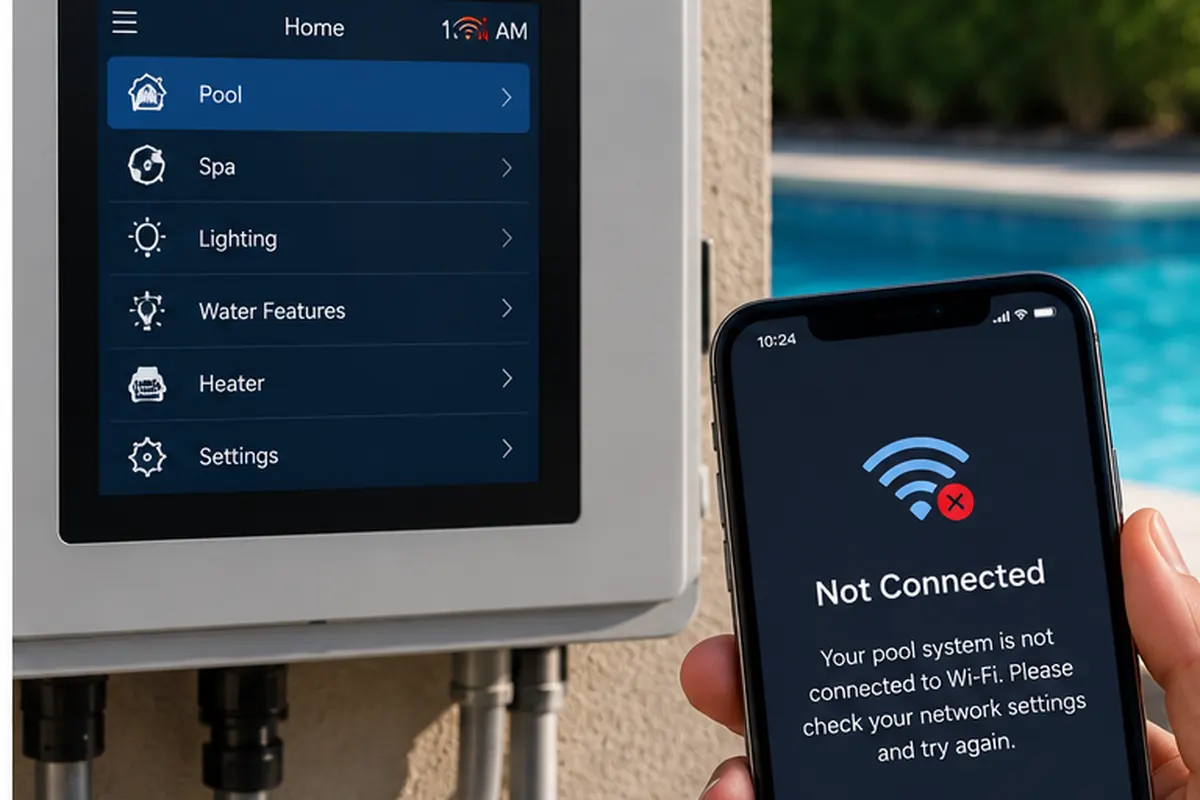
A pool automation system can continue to have working equipment controls while remote smartphone access stops working. When that happens, the problem may be the network connection rather than the pool equipment itself.
Troubleshooting should separate the automation controller, local network, internet connection, app, and pool equipment instead of assuming the entire system has failed.
Quick Answer: Why Is My Pool Automation Not Connecting to Wi-Fi?
If your pool automation works from its local control panel but not from your phone, start by checking the home internet connection, the controller's network status, Wi-Fi signal strength and your app account. A router replacement, changed Wi-Fi password or temporary remote-service problem may interrupt app access even when the pool equipment itself is working normally.
If neither the local controls nor the app work, the problem may involve controller power, communication wiring or other equipment rather than Wi-Fi alone. Avoid factory resets or electrical repairs until you have identified which part of the system is failing.
Pool Automation Wi-Fi Troubleshooting at a Glance
| Symptom | Possible Cause | First Check |
|---|---|---|
| Local panel works, app does not | Network, internet, app or remote-access problem | Controller network status and phone connection |
| Connection stopped after router replacement | Saved network credentials no longer match | Manufacturer's network setup procedure |
| Connection works intermittently | Weak wireless signal or unstable network | Signal quality at the equipment location |
| App works at home but not away | Remote-access, internet or account issue | Cellular connection and manufacturer service status |
| App cannot find the controller | Network setup, account or discovery issue | Controller connection and app setup instructions |
| Neither local panel nor app works | Power, controller or communication problem | Controller status and qualified service diagnosis |
First Determine What Is Actually Offline
Before changing settings, determine whether the automation controller itself is operating normally.
Check whether you can operate equipment from the local control panel, if your system has one. For example, see whether the panel displays the current equipment status and responds to normal user commands.
If local controls work but the smartphone app cannot connect, focus first on networking, internet access, software and remote connectivity.
For a broader explanation of controllers, networking, schedules, compatibility and remote operation, see our Complete Guide to Pool Automation.
Step 1: Check Your Home Internet Connection
Confirm that another device connected to the same home network can access the internet.
Try opening a website on a phone or computer while connected to the home's Wi-Fi rather than cellular data.
If other devices cannot access the internet, the problem may involve the router, modem or internet service provider.
If the internet is working normally, continue by checking the pool controller's network connection.
Step 2: Check the Automation System's Network Connection
Pool automation equipment is often installed outdoors, sometimes a considerable distance from the home's router.
Depending on the system, connectivity may be provided by built-in Wi-Fi, a separate wireless adapter, an Ethernet connection or another manufacturer-specific networking component.
Use the controller's documented network-status screen or connection procedure to determine whether it is connected to the home network.
Do not assume that every automation controller connects directly to Wi-Fi. Some installations use separate network interfaces or gateways.
Step 3: Check Wi-Fi Signal Strength
Wireless signal quality at an outdoor equipment pad can be very different from signal quality inside the house.
Potential sources of interference or signal loss include:
- Distance from the router.
- Exterior walls and building materials.
- Metal equipment enclosures.
- Landscaping and other obstructions.
- Router placement.
- Interference from nearby wireless networks or equipment.
Example: Intermittent Connection at an Outdoor Equipment Pad
Suppose your automation app connects reliably in the morning but frequently loses communication later in the day.
The local panel continues operating the pump and heater normally, and the home internet connection remains available.
One possible explanation is an unstable wireless connection between the automation equipment and the home network.
Check the controller's connection status and follow the manufacturer's recommended signal-testing procedure before replacing hardware.
A phone receiving Wi-Fi near the equipment pad does not prove that the controller has a reliable connection. The controller's antenna, enclosure and network hardware may behave differently.
Step 4: Check Whether the System Supports Ethernet
Some automation systems provide a wired network option.
Pentair's IntelliCenter documentation, for example, describes wired Ethernet and wireless connectivity options, depending on the system configuration.
Where supported, a properly installed wired connection may be worth considering if wireless reliability at the equipment pad is poor.
Before installing network cable, verify the controller's connection requirements and any applicable outdoor cabling, electrical-separation and surge-protection requirements.
Step 5: Check for Recent Router or Wi-Fi Changes
Connectivity problems can appear after changes such as:
- Replacing the router.
- Changing the network name.
- Changing the Wi-Fi password.
- Changing network-security settings.
- Changing network hardware.
- Moving the router to a different location.
If the controller still has the old network credentials, it may no longer be able to connect.
Follow the manufacturer's setup procedure to reconnect the automation system to the correct network.
Example: Automation Stops Connecting After a New Router Is Installed
Suppose your pool automation worked normally until you replaced your home router.
The new router uses a different network name and password. Your phone connects to the new network, but the pool controller still has the previous credentials.
In this situation, follow the automation manufacturer's instructions for updating the controller's network connection.
Do not factory reset the entire pool automation system simply to change its Wi-Fi settings.
Step 6: Check Network Compatibility
Some automation networking components support only particular wireless bands, security methods or connection arrangements.
For example, a controller or wireless adapter may have requirements that differ from those of a newer smartphone.
Check the manufacturer's documentation for:
- Supported wireless bands.
- Supported network-security methods.
- Network-name and password requirements.
- Required network adapters or gateways.
- Router compatibility guidance.
Use the manufacturer's supported configuration rather than weakening your entire home network's security to accommodate an older device.
Step 7: Check the Automation App
If the controller appears connected to the network but the app does not work correctly, check the app itself.
- Confirm that your phone has internet access.
- Check whether the app is up to date.
- Verify that you are signed into the correct account.
- Confirm that the automation system still appears in your account.
- Check for any manufacturer-reported remote-service interruption.
- Follow the manufacturer's account-reconnection procedure if necessary.
Do not delete your controller from the account without checking the manufacturer's instructions. Re-adding equipment may require information or access that is not immediately available.
Step 8: Test Local and Remote App Access Separately
Some automation platforms use different communication paths for local and remote access.
Testing both can help identify where the connection is failing.
| Test | What the Result May Suggest |
|---|---|
| Local panel works | Basic controller and equipment functions may still be operating |
| App works on home Wi-Fi | The controller may have a functioning local network connection |
| App fails when using cellular data | Remote-access service, account or internet connectivity may be involved |
| App fails on both Wi-Fi and cellular data | Controller networking, app, account or remote service may need investigation |
The meaning of these tests depends on the manufacturer's networking design. Some apps communicate through cloud services even when the phone and controller are on the same home network.
Step 9: Check System Software and Firmware
Automation manufacturers periodically release app, software and firmware updates.
Check the manufacturer's support information for the exact controller model and currently installed version.
Follow the documented update procedure carefully. Some systems require specific upgrade sequences rather than updating directly from a very old version to the newest release.
Before updating, review any instructions concerning saved configurations, equipment operation and required network access.
Step 10: Should You Reboot the Automation System?
A reboot may be part of the manufacturer's troubleshooting procedure, but do not randomly disconnect or reset pool electrical equipment.
Use the documented restart procedure for your specific automation system.
If the manufacturer recommends restarting a separate network adapter or gateway, follow those instructions rather than unnecessarily restarting the entire pool controller.
Do Not Factory Reset the System First
A factory reset can erase configuration information and should not be the first troubleshooting step unless the manufacturer specifically instructs you to perform one.
Complex automation systems can contain:
- Equipment assignments.
- Filtration schedules.
- Pump speeds.
- Valve configurations.
- Heater settings.
- Lighting settings.
- Freeze-protection settings.
- Other programmed operating functions.
Those functions may include variable-speed pump control, pool heater control and pool lighting control.
If a reset is necessary, first follow the manufacturer's instructions for backing up or documenting the existing configuration, where supported.
Local Control Works but the App Doesn't
This is an important diagnostic clue.
If local automation functions normally, the equipment-control portion of the system may still be working.
Concentrate troubleshooting on:
- Controller network connection.
- Home internet connection.
- Remote-access service.
- App account.
- Software or firmware.
Replacing a functioning automation controller may not resolve a problem caused by router settings, account access or a temporary remote-service interruption.
Neither Local Control nor the App Works
If the controller itself is not functioning normally, the problem may extend beyond Wi-Fi.
Possible areas requiring diagnosis include controller power, communication wiring, control hardware and other connected equipment.
Professional service may be appropriate, particularly when electrical power, communication wiring or high-voltage equipment is involved.
Do not open energized pool-control enclosures or bypass safety devices to investigate a connectivity problem.
What If the Connection Keeps Dropping?
Intermittent failures can be more difficult to diagnose than a complete loss of connectivity.
Record when the connection drops and whether local control continues to work.
Useful observations include:
- Whether the problem began after a router or software change.
- Whether other devices also lose internet access.
- Whether the controller reports a weak or lost network connection.
- Whether the problem occurs only when accessing the system remotely.
- Whether the manufacturer has reported a service interruption.
These observations can help distinguish a local wireless problem from an app, account or remote-service issue.
When Should You Consider Replacing Networking Hardware?
Replacing the controller or network interface should generally follow diagnosis rather than be the first troubleshooting step.
Replacement or an approved upgrade may be worth investigating when:
- The manufacturer confirms that the existing network component has failed.
- The original networking accessory is no longer supported.
- The system cannot connect using the manufacturer's supported network configuration.
- A documented compatibility issue prevents continued use.
Before ordering, verify the exact controller model, supported network accessory, required software version and installation requirements.
A Practical Troubleshooting Order
- Confirm the automation controller has power.
- Check whether local equipment control works.
- Confirm the home's internet connection works.
- Check the controller's network connection.
- Evaluate wireless signal quality at the equipment location.
- Check whether router credentials or security settings recently changed.
- Verify the controller's network compatibility requirements.
- Check the smartphone app, account and remote-service status.
- Review manufacturer software and firmware guidance.
- Follow the manufacturer's documented restart procedure if appropriate.
- Contact qualified service if controller or electrical problems remain.
If you are troubleshooting the automation system itself rather than only its network connection, see How Does Pool Automation Work? for an explanation of how the controller coordinates connected equipment.
If troubleshooting confirms that an older controller or networking component needs replacement, verify compatibility with your existing equipment before comparing Wi-Fi-enabled automation options.
Compare Pool Automation Wi-Fi Controllers on Amazon
Frequently Asked Questions
Why does my pool automation work locally but not on my phone?
The controller may still be operating normally while its network connection, internet access, app account or remote-access service is unavailable. Check those connections before changing equipment settings.
Can a new router disconnect my pool automation?
Yes. A new network name, password or security configuration can prevent the controller from reconnecting until its network settings are updated according to the manufacturer's instructions.
How can I tell whether weak Wi-Fi is the problem?
Check the controller's network status and follow the manufacturer's signal-testing guidance. A phone receiving Wi-Fi near the equipment pad does not guarantee that the controller has a reliable connection.
Will an Ethernet connection improve reliability?
A properly installed wired connection may help when wireless signal quality is poor, provided the automation system supports Ethernet and the installation meets the manufacturer's requirements.
Why does my automation app work at home but not when I leave?
The system may have local connectivity but a problem with remote internet access, the app account or the manufacturer's remote service. The exact explanation depends on the platform's networking design.
Should I restart my pool automation controller?
Use the manufacturer's documented restart procedure if it is recommended for your symptoms. Do not randomly disconnect pool electrical equipment or perform a factory reset as an initial troubleshooting step.
Will a factory reset fix pool automation Wi-Fi?
A factory reset may erase equipment assignments, schedules and other important programming without resolving the underlying network problem. Perform one only when directed by the manufacturer and after following any applicable backup instructions.
Can outdated firmware cause connectivity problems?
Software or firmware compatibility can affect connectivity. Check the manufacturer's instructions for your exact controller and installed version before attempting an update.
Do I need to replace my automation controller if Wi-Fi stops working?
Not necessarily. First determine whether the problem involves the controller, a separate network accessory, router settings, internet service, the app or remote connectivity.
When should I call a pool automation technician?
Qualified service is appropriate when local controls fail, electrical or communication hardware may be involved, or manufacturer-prescribed troubleshooting does not resolve the problem.
Bottom Line
When pool automation loses Wi-Fi, first determine whether you have an automation failure or a remote-connectivity failure.
If local controls still work, concentrate on the network, internet connection, app, account and software before changing pool-equipment settings or replacing hardware.
Follow the manufacturer's troubleshooting instructions for your exact controller, and avoid factory resets or electrical work unless they are necessary and appropriate for the diagnosed problem.
How We Research
Pool Equipment Lab evaluates pool equipment using manufacturer specifications, documentation, compatibility requirements, operating costs, warranty information, and owner feedback when relevant. We do not claim hands-on testing unless we actually performed it.